Step-by-step pairing
Verify system & WAN status
Sign in to the Ejoin web management interface and review System status to confirm WAN connectivity, static client subnet pairing and hardware/firmware readiness.
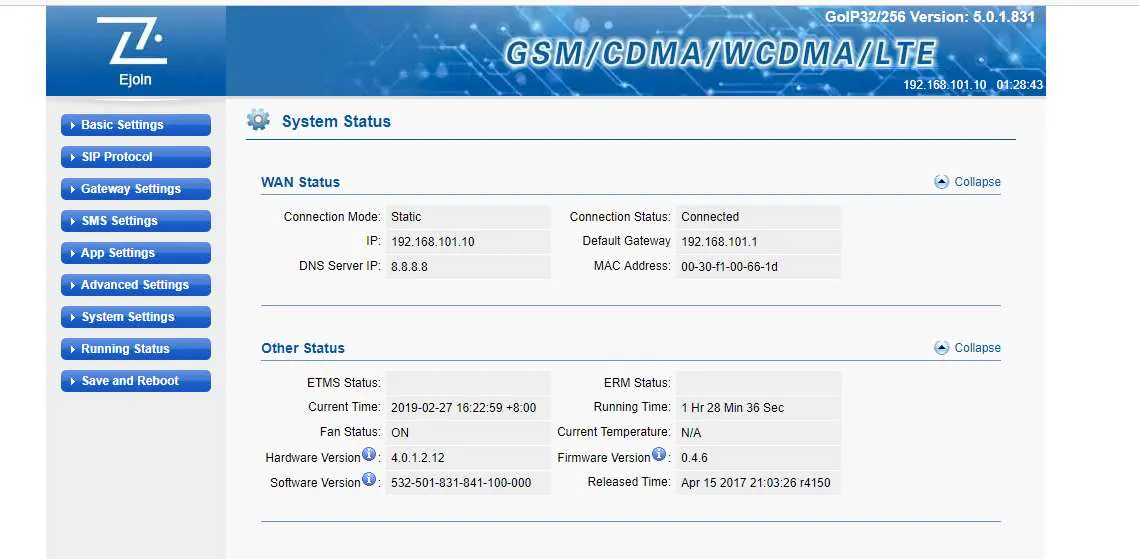
Figure 1 · Ejoin system & WAN status Configure static WAN address
Open Basic settings → WAN settings, set WAN type to Static IP, and assign an IPv4 address on the Cloudfonica client subnet (for example
192.168.101.10, mask255.255.255.0, default gateway192.168.101.1).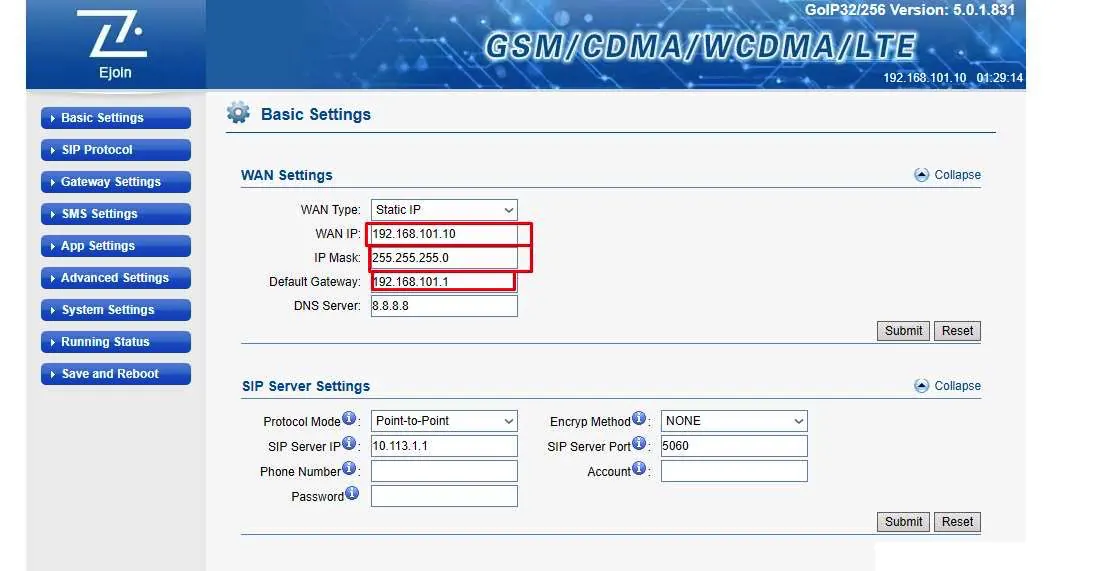
Figure 2 · Ejoin Basic settings → WAN settings Bind SIP server & call parameters (192.168.101.1:5060)
Open SIP protocol → Basic settings, select
Point-to-Pointmode, set SIP server to192.168.101.1(UDP port5060), set Receive all call to Enabled, keep Drop account prefix Disabled and select Submit.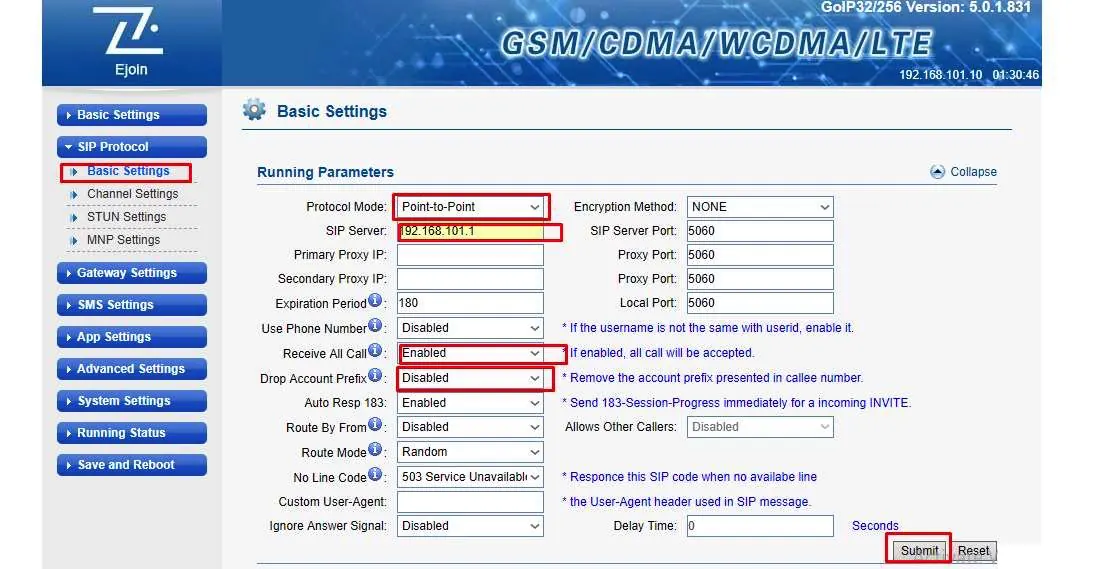
Figure 3 · Ejoin SIP protocol running parameters Save, reboot & register gateway
Ensure
G.729andG.723codecs remain prioritised, open Save and reboot, select Save followed by Reboot, and register the gateway’s static IP inside your Cloudfonica service panel.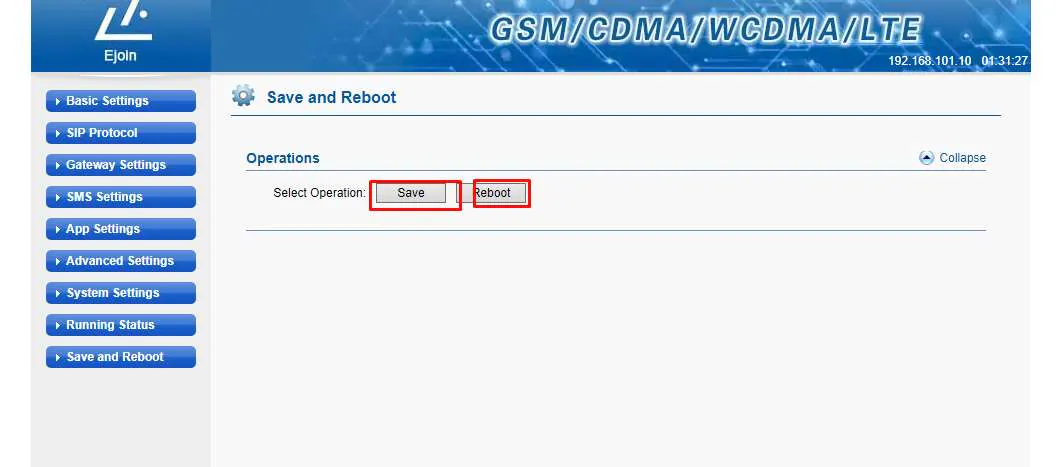
Figure 4 · Ejoin save and reboot operations
Illustrated PDF manual
Ejoin gateway configuration guide
Four-step illustrated manual for Ejoin static WAN IP, Point-to-Point SIP server pairing and save/reboot workflow.
SHA-256: 3e042a34bd23…c3f625be